Quick Summary
This is the complete User Manual for Cinch StreamGrab. It will guide you through how to use the software to download video and audio from over 1,000 websites.
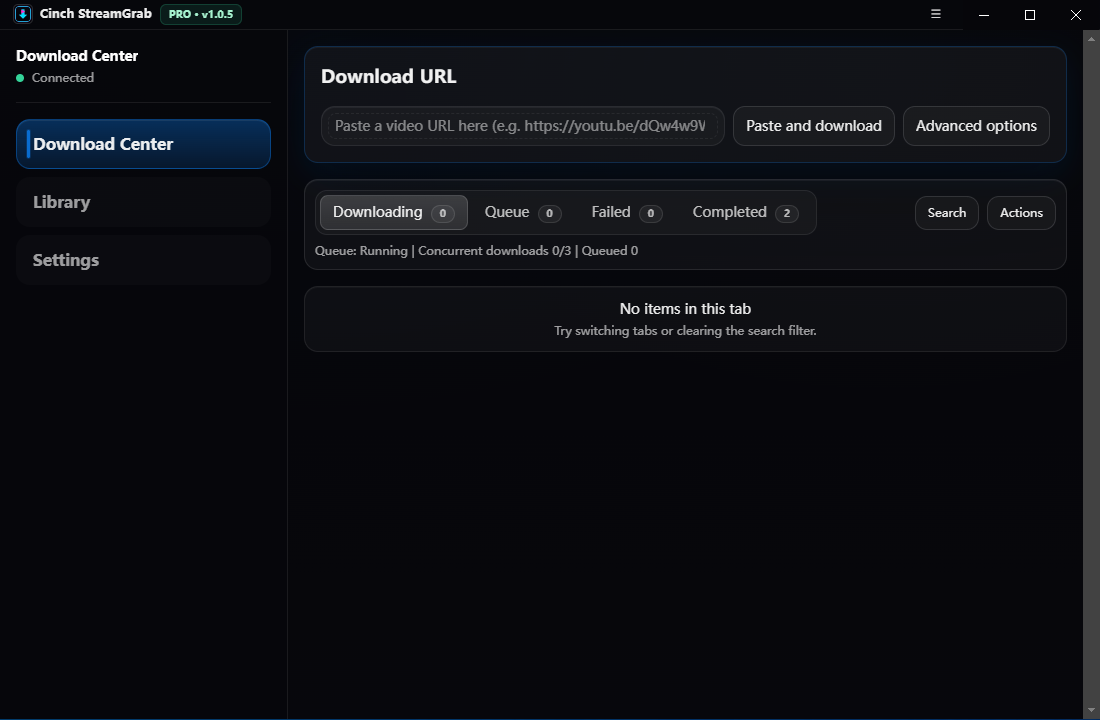
Cinch StreamGrab is a desktop application for Windows and macOS that makes downloading online video and audio effortless for everyone. With support for thousands of websites and powerful features wrapped in an intuitive, friendly interface—no terminal or commands required.
What is Cinch StreamGrab?
Cinch StreamGrab is an easy‑to‑use video and audio downloader for everyday computer users. It supports thousands of websites through a built‑in extraction engine and offers modern features like smart format selection, batch downloads, subtitle handling, metadata embedding, SponsorBlock, and post‑processing—presented through clean buttons, menus, and presets.
- Zero command line: point, click, and download
- Cross‑platform: native apps for Windows and macOS
- Power under the hood: built on a robust, actively maintained core
How it works
- Paste or drag a link
- Drop a URL into StreamGrab or use the system clipboard detection. The app automatically picks the right site profile to parse available streams and metadata.
- Choose what you want
- Pick Best Quality, Small File, Audio‑only, or a Custom Format (resolution, codec, subtitles, etc.) using simple presets.
- Download and combine
- If a site provides separate video and audio streams, StreamGrab uses a local media toolkit behind the scenes to merge them into one file.
- Optional finishing touches
- Automatically embed thumbnails and metadata, save descriptions and subtitles, split by chapters, or trim segments.
All of this is powered by a robust site‑parsing and format‑selection core—carefully packaged into a GUI so you never have to memorize options.
Supported websites
StreamGrab supports a very wide range of websites via built‑in site profiles. Coverage evolves over time with updates.
- For an indicative (non‑exhaustive) list of commonly used platforms, see the in‑app Supported Sites panel.
This includes major video platforms, social networks, news sites, live streaming services, music hosts, and many regional providers. Site behavior changes over time, so capabilities can vary per release.
Getting started
- Windows
- Download and install Cinch StreamGrab for Windows.
- Launch the app and paste a video URL.
- Choose a preset (e.g., Best Quality) and click Download.
- macOS
- Download and drag Cinch StreamGrab to Applications.
- Open the app, grant permissions if prompted by Gatekeeper.
- Paste a URL, pick a preset, and start the download.
Tips
- Use the clipboard watcher to auto‑populate new links.
- Set your default download folder and filename template in Settings.
- Enable “Ask me each time” if you prefer per‑download control.
System requirements
- Windows 10 or later (x64)
- macOS 10.15 (Catalina) or later
- Internet connection; a local media toolkit is recommended for best results
Frequently asked questions
- Do I need to use the command line?
- No. StreamGrab is designed for mouse‑and‑keyboard use with an approachable GUI. Power users can still tune advanced options in Settings.
- Is StreamGrab a command‑line tool?
- No. StreamGrab is a graphical desktop application with clear presets, batch UI, progress views, and automatic updates—designed for everyday users while still offering advanced controls.
- Can it download playlists, channels, or live streams?
- Yes—where supported by the site. You can queue entire playlists/channels and handle live or upcoming streams when provided.
- Will it work with my favorite site?
- Very likely. Check the supported sites list above for specific coverage and notes.
Responsible use
Only download content that you have the legal right to save—your own uploads, content with explicit permission, or media in the public domain/under permissive licenses. Respect each site’s Terms of Service and local laws.