Quick Summary
Need Scribd or Everand audiobooks offline? This guide explains what works, what does not, and when you need app downloads versus real MP3 recording.
- Just offline listening on your phone? → Use the official Everand app (Method 1). Stop here.
- Need MP3 for car stereo, old iPod, or any player outside Everand? → You need recording software (Method 2 or 3).
- Want a direct download button? → Stop. Everand does not offer one. Reading further will not change this.
Most readers searching this topic have one boring problem: you already pay for Everand, but you still cannot reliably listen on the subway, on a plane, in the gym, or on an old iPod without the app getting in the way. This guide shows you what actually works in 2026.
Quick Answer: Can You Really Download Everand Audiobooks?
Yes, but not in the way most people mean.
Everand lets you download for offline playback inside its mobile app. It does not give you a normal MP3 or M4B file you can move anywhere. The “download” is closer to a locked cache than a real one.
Here is the blunt version:
- If you only want offline listening on your phone, use the official app.
- If you want a file for your car, old iPod, MP3 player, or any app you choose, recording is the only broadly workable path.
- If you already spent an hour looking for a direct MP3 export button, stop. Everand does not offer one.
What Changed: Scribd → Everand Split Explained
Part of the confusion is naming.
Scribd split its services in late 2023. Scribd stayed focused on documents, while Everand became the brand for audiobooks, ebooks, and similar reading/listening content. So when people search for “download audiobooks from Scribd,” they are usually trying to solve an Everand problem.
The other change is the subscription model. Community complaints repeatedly focus on the gap between “unlimited” marketing and real access limits on popular titles. This matters because most users are not just trying to go offline for a flight. They want to avoid app lock-in, title throttling, or the feeling that years of subscription payments leave them with nothing they actually own.
Method 1: Official Everand App Download (Mobile Only)
This is the best option if your only problem is unstable internet during a commute and you are still happy listening inside the Everand app.
Who this method is for
- You only listen on a phone or tablet.
- You want the quickest setup.
- You do not need a transferable file.
Before you start
Make sure your Everand subscription is active and you are logged in. The app will not let you download if your subscription expired or if you are not signed in.
Steps
- Open the Everand mobile app.
- Find the audiobook you want while you still have a stable connection.
- Tap the download icon (usually a downward arrow) next to the title.
- Wait for the download to finish. You should see “Downloaded” or a green checkmark next to the title.
- Test before you travel: Turn on airplane mode, open the book, and confirm it plays. If it asks you to sign in or shows “Content unavailable,” the download did not work properly. Try downloading again while on Wi-Fi.
What this solves
- Bad subway or airport signal.
- Basic offline listening on the same mobile device.
- No extra software cost.
What it does not solve
- No MP3 export.
- No playback on old iPods, car stereos, or generic audio players.
- Downloaded books stay tied to the app and your active subscription.
- Reported audio quality remains limited to the service’s source stream.
If you just want a temporary fix, start here. If you want long-term device freedom, do not stop here.
Method 2: Cinch Audio Recorder (Best for Easier MP3 Backup)
This is the option if you want the least friction and are willing to pay a small amount to avoid command-line tools.
The core idea is simple: you play the audiobook, and the recorder captures the system audio in real time. Think of it as making a personal tape copy of a live stream, not downloading a file.
Who this method is for
- You want MP3 files for multiple devices.
- You are okay paying a small one-time amount for convenience.
- You do not want to debug old GitHub scripts.
Steps
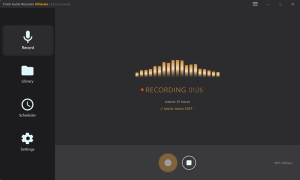
- Download and install Cinch Audio Recorder from the official website onto your Windows PC.
- Open Cinch and look for an audio source setting. Select “System Audio” or “What You Hear” (the exact wording varies by version).
- Test first: Play 10 seconds of any audiobook in Everand’s web player. You should see the recording meter in Cinch move, indicating it is capturing sound. If the meter stays flat, you need to adjust the audio source setting.
- Once the test works, queue your audiobook in Everand’s web player.
- Click “Record” in Cinch, then immediately click “Play” in Everand.
- Let it run for the entire book. A 10-hour book takes about 10 hours to record.
- When finished, click “Stop” in Cinch and export as MP3.
- Check the result: Open the exported MP3 file and play the first minute. You should hear clear narration. If it is silent or crackly, the recording failed and you need to redo the audio source setup.
Why it works for some people
- Easier than building a DIY Audacity workflow.
- Usable for scenario 2: moving one book between phone, car, and older devices.
- Community reports often mention less manual cleanup than totally free tools.
The trade-offs you should know first
- Recording is real-time, so a 10-hour book still takes about 10 hours to capture.
- A 320 kbps export setting does not mean the source became high fidelity. It only means the saved file was encoded at that output rate; the original Everand source is still the limiting factor.
- Personal backup rules vary by region. Check your local laws before proceeding.
If you want MP3 plus the least hassle, this is the first paid route to look at. If you care more about zero cost than convenience, skip to Audacity.
Method 3: Audacity (Free but More Manual)
Audacity is the free baseline. It works, but it does not hold your hand.
Warning before you start: The most common failure is recording silence because the wrong input device was selected. Always do a 10-20 second test first.
This is the right answer when your budget matters more than polish, or when you want tighter control over levels, export settings, and cleanup.
Who this method is for
- You want a free path first.
- You can tolerate some setup and manual cleanup.
- You are okay creating your own chapters and metadata later.
Before you start
You need to make sure your computer can record system audio (the sound coming from your speakers/headphones). This is the step where most people fail.
On Windows: Right-click the speaker icon in your system tray → Open Sound settings → Look for “Stereo Mix” or “What You Hear” in the recording devices. If you do not see it, your sound card may not support it, or it might be disabled. You may need to enable it in the properties, or use a virtual audio cable like VB-Cable (free).
On Mac: You will need a third-party tool like Soundflower or BlackHole to route system audio to Audacity.
Steps
- Install Audacity from audacityteam.org (avoid unofficial download sites).
- In Audacity, click the microphone icon dropdown and select your system audio source (Stereo Mix, What You Hear, or your virtual cable).
- Critical test: Click the red Record button, then play 10-20 seconds of an audiobook in Everand. Stop recording and play back what you captured. You must hear the narration. If you hear silence, stop. Do not proceed. Go back and fix your audio source settings.
- Once the test works, delete the test recording and start a fresh one.
- Record the full audiobook in Everand.
- Stop recording when finished.
- Trim silence from the start and end (optional but recommended).
- Export as MP3 (File → Export → Export as MP3).
- Add metadata manually if you want (File → Edit Metadata Tags).
Common failure points
You recorded silence
Usually this means the wrong input device was selected.
- On Windows, check whether your system audio loopback or Stereo Mix style input is available.
- If Stereo Mix is missing, use the output device loopback option that matches your headphones or speakers.
- Do not record a whole book until your short test file actually contains sound.
The volume is too low or distorted
- Set system volume first.
- Do a short test passage with loud and quiet narration.
- Avoid pushing the input so hard that the waveform clips.
The file is one giant block with no chapters
- Record chapter by chapter if navigation matters.
- Or split later using labels and export tools.
If you already tried the official app and it still does not fit your workflow, Audacity is the first free method worth your time. Do not waste that time on random browser extensions first.
Method 4: ViWizard and Similar Recording Tools
You will also see names like ViWizard, TunesKit, and similar recorders.
Treat them as variations on the same basic idea: they capture playback rather than unlocking a secret direct download path. The reason not to over-analyze all of them is simple. For most readers, the real choice is not “which of six recorders is mathematically best.” The real choice is:
- paid and easier, or
- free and more manual.
Use this bucket if
- You want an alternative to Cinch.
- You prefer a different pricing model or interface.
- You are comfortable comparing current community feedback before buying.
Do not expect
- guaranteed better source quality,
- a magical DRM removal feature for Everand audiobooks,
- or permanent reliability just because the landing page sounds confident.
Community reports can help you shortlist these tools, but they are anecdotal, not systematic testing.
Method 5: GitHub Tools and Advanced Methods (Optional – Not Recommended)
There are old GitHub projects for downloading Scribd content. For most readers, this is not worth the time.
Why skip this:
- Most tools are outdated (2-3 years since last update)
- They require Python, Git, and browser driver setup
- They break when Everand changes their website
- The learning curve is steep
Only consider if: You are a developer who enjoys troubleshooting code, and you have hours to spare.
If you are reading this and thinking “I just want to listen on my commute,” skip this section entirely and use Method 1 or 2 instead.
Method Comparison: Which One Should You Choose?
| Method | Best for | Cost | File you can keep? | Device freedom | Main downside |
|---|---|---|---|---|---|
| Everand app download | Fast offline phone listening | Included with subscription | No | Low | App-locked |
| Cinch or similar paid recorder | Easier MP3 backup | Paid | Yes, as a recording | High | Real-time capture |
| Audacity | Free backup workflow | Free | Yes, as a recording | High | Manual setup and cleanup |
| Other paid recorders | Alternative paid workflow | Paid | Yes, as a recording | High | Same source limits, mixed trust |
| GitHub tools | Technical experiments | Usually free | Sometimes | Mixed | Fragile and outdated |
Simple decision tree
- Only need offline playback on your phone for a flight or subway ride? Use the official Everand app.
- Need a real file for car playback, old devices, or long-term access? Use a recorder.
- Want the cheapest route? Use Audacity.
- Want the least setup pain? Use a paid recorder.
- Want to tinker for fun, not because you need reliability? Then and only then look at GitHub tools.
Important Legal and Ethical Considerations
This part is boring, but skipping it is how people make dumb decisions.
- Personal backup recording may be treated differently depending on your country.
- Sharing, uploading, selling, or widely distributing recorded files is the clearest risk line and the one readers should treat as off-limits.
- Keep your Everand subscription active while using the content.
- Do not read this as legal advice. It is a practical boundary, not a lawyer letter.
If you want a zero-gray-area answer, there is none here. If that makes you uncomfortable, stay with the official app or buy DRM-free audiobooks from stores that actually sell downloadable files.
Common Problems and Troubleshooting
Quick Fixes Table
| Problem | Likely Cause | Fix |
|---|---|---|
| Recorded file is silent | Wrong input device selected | Use “Stereo Mix” (Windows) or loopback output; test 10 seconds first |
| Volume too low or distorted | Input level misconfigured | Set system volume to 70-80%, avoid clipping |
| No chapter markers | Recorded as one continuous file | Record chapter by chapter, or split later with labels |
| App download fails offline | Cache incomplete or subscription expired | Re-download while online; keep subscription active |
| File too large | Unnecessarily high bitrate | Use 128-192 kbps for speech; 320 kbps wastes space |
The Everand app says downloaded, but playback still fails offline
Try this first:
- Re-open the book while still online.
- Confirm the download fully completed.
- Keep the app updated.
- Test before you leave Wi-Fi.
If that still does not make you trust the app, stop treating the app cache like a permanent solution. Move to a recorder.
You need playback on an old iPod, car stereo, or generic MP3 player
The official app will never solve this. You need a standard audio file, which means recording.
You want better sound quality
Be realistic here.
- Everand’s source quality is still the ceiling.
- Exporting the recording at 320 kbps can preserve your captured file cleanly, but it cannot manufacture detail that was never in the source stream.
- If sound quality is your top priority, Everand may simply be the wrong platform for your favorite books.
You care about chapters, cover art, and clean metadata
The easy mistake is to focus only on getting the audio. The annoying work comes later.
- If chapter navigation matters, record chapter by chapter.
- If metadata matters, plan time for manual tagging.
- If that sounds exhausting, a paid recorder with auto-tag help may be worth the fee.
Is It Worth the Effort?
For short-term offline listening, yes: use the official app and stop there.
For long-term control, the answer is also yes, but only if you accept the real cost: time. Recording is the only generally workable way to turn Everand playback into a portable file, and it is slower than most people want.
The mistake is thinking there must be a hidden one-click exporter somewhere. There usually is not. Everand is built around access, not ownership.
So make the choice based on your actual problem:
- commute reliability,
- multi-device playback,
- cancellation anxiety,
- or source-quality frustration.
Those are different problems, so your next move should be different too: stay with the app if you only need simple offline playback, and move to recording only when device freedom matters enough to justify the extra work.
FAQs
Can I download Everand audiobooks to MP3 directly?
No. Everand does not provide direct MP3 export. You need recording software if you want a portable file.
Is recording Everand audiobooks legal?
There is no clean answer. Personal backup recording sits in a gray area that varies by country. Some jurisdictions may tolerate it under fair use concepts; others may not. The safest practical boundary is simple: do not share, sell, or publicly distribute those recordings. If you want zero legal ambiguity, use the official app or buy DRM-free audiobooks from stores that sell downloadable files.
Why does Everand limit an “unlimited” subscription?
Community complaints and plan details point to access throttling on popular titles. That is usually tied to licensing costs and plan tiers.
Are GitHub download tools still worth trying?
Only if you are technical and do not need reliability. For most people, they cost more time than they save.
Is a recorded 320 kbps MP3 better than Everand’s original stream?
Not really in the way most people mean. The saved file may use a higher export bitrate, but the original stream quality is still the bottleneck.
Can I keep chapter markers when recording?
Only if you record chapter by chapter or manually add labels during export. Most recording tools do not automatically preserve Everand’s chapter structure.
Start Here
Do this in order:
- Decide: app-only offline or real MP3 file?
- Phone/tablet only, temporary offline need → Use Everand app (Method 1)
- Car stereo, old iPod, multi-device → Use a recorder (Method 2 or 3)
- If using the Everand app:
- Download while on Wi-Fi
- Open the book once to confirm full cache
- Test before you travel
- If using a recorder:
- Paid + easy → Cinch or similar tool
- Free + manual → Audacity
- Always do a 10-second test first to avoid the silence-file disaster
- Considering GitHub tools?
- Only proceed if you have a fallback recorder ready
- Expect to troubleshoot Python, drivers, or site changes
- Legal baseline:
- Personal backup rules vary by country
- Never share or distribute recordings
- Keep your Everand subscription active
Sources & further reading
- Everand Support: Listening to an audiobook
- Everand FAQ on the Scribd and Everand split
- Everand on the App Store
- Reddit: How do I download audiobooks from Everand to keep them?
- Reddit: Anybody else using Everand for audiobooks?
- Reddit: Everand support and the unlimited claim
- GitHub: scribd_dl
- ViWizard tutorial on Scribd audiobook recording
- Cinch Solutions tutorial on downloading Scribd audiobooks