Quick Summary
Shazam does not download MP3s directly. Here are 5 working methods to save identified songs for offline listening, from streaming sync to recording tools.
If your goal is just offline listening, start with the streaming-app route. If your goal is a movable file you can back up or drag onto another device, jump to the recording or YouTube sections. What you will not find is a native Shazam button that spits out an MP3.
Quick Answer: Can You Download Directly from Shazam?
No. Shazam identifies music and sends you to other platforms. It does not provide a built-in MP3 download button.
That is the part many people get stuck on. They assume the song is somehow stored inside Shazam because the app recognized it. It is not. Shazam is the fingerprint scanner, not the music locker.
So the real job is this:
- use Shazam to identify the song
- open the linked service
- choose a legal offline option there, or use a separate capture workflow to create an MP3 file
Why Shazam Does Not Offer MP3 Downloads
This is mostly a rights problem, not a missing feature. Shazam is built for music discovery. Once it identifies a song, it points you to Apple Music, Spotify, YouTube, or another service that actually carries the track.
That means every workaround has a trade-off:
| Method | Best for | Main cost | Main risk |
|---|---|---|---|
| Sync to Apple Music or Spotify | People who already pay for streaming | Subscription | You do not get a standalone MP3 file |
| Audio capture software | People who need a real MP3 and care about control | Usually paid software | Real-time recording and possible quality loss |
| ShazaMusic on Android | Budget Android users | App quality and ads | Security and reliability vary |
| YouTube converter workaround | Occasional free use | More manual work | Wrong version, low quality, unstable sites |
| iOS Shortcut or Power Automate | Tinkerers and bulk workflows | Setup time | Breaks often |
If you only want a song for a flight or commute, do not overcomplicate this. Use your streaming app if you already subscribe. If you want files you can move, back up, or load into another device, you are solving a different problem. You are solving a file-ownership problem, not an offline-listening problem.
Method 1: Sync to Spotify or Apple Music (Best for Subscribers)
Prerequisite: You need an active Apple Music or Spotify Premium subscription. The free tier does not support offline downloads.
Start here if you already pay for a streaming service and mainly want the song available offline on your phone by tonight.
This is the best option if you already pay for Apple Music or Spotify. It is the wrong option if your goal is a portable MP3 file you can drag into a USB drive or DJ software.
Steps
- Open Shazam.
- Go to Settings (tap the gear icon).
- Connect Apple Music or Spotify and sign in when prompted.
- Turn on Auto-add Shazams if the option is available.
- Open your music app and look for a playlist usually named My Shazam Tracks or Shazam.
What you should see: The song you just Shazamed should appear in this playlist within a few seconds.
- Tap the download icon (usually a downward arrow) next to the song or playlist to save it for offline playback.
Expected result: The song now has a small “downloaded” indicator (usually a green arrow or checkmark), and you can play it without internet.
What this method is good at
- usually the smoothest setup
- no shady third-party download sites
- best quality among the common options discussed here
- easiest for repeated use
What it does badly
- requires a subscription for offline downloads on most platforms
- gives you offline playback inside the app, not a free-floating MP3 file
- Shazam only syncs with one platform at a time, not both
Use it when
- you already pay for Apple Music or Spotify
- you mainly listen on your phone
- you care more about convenience than file ownership
Skip it when
- you only use Spotify Free or another free streaming tier
- you need an MP3 file for a USB drive, old MP3 player, or DJ set
- you want to keep the file after canceling your subscription
Method 2: Audio Capture Software (Best for Real MP3 Files)
If your main goal is a real MP3 on disk, this is where the conversation changes.
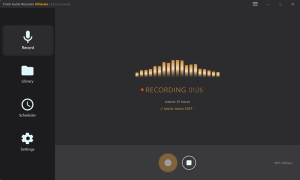
Community tutorials commonly mention tools like DRmare, ViWizard, or similar audio capture software. The basic idea is the same across them: Shazam helps you identify the song, then the software records the song as it plays from a legal source.
Steps
- Use Shazam to identify the song.
- Open that song in Apple Music, Spotify, YouTube, or another service you can play.
- Launch your audio capture tool.
- Set the output format to MP3.
- Start playback and record the song in real time.
- Save the recording, then rename and tag the file if needed.
What goes right here
- you get a file you can actually move or keep
- better control over naming and storage
- works for people building a local offline library
What can go wrong
- recording is real-time, so long playlists take time
- system sounds or notifications can ruin the file
- quality depends on the source stream and the recorder setup
- many tools in this category cost money
Use it when
- you need a true MP3 file, not just offline playback in an app
- you are willing to pay for convenience or control
- you want something more stable than shortcuts and converter sites
Skip it when
- you only need the song on your phone for one commute
- you do not want to install desktop software
- you expect instant batch conversion with zero cleanup
Method 3: ShazaMusic and Similar Android Apps
Android users often go looking for an app that feels closer to the missing “download” feature.
Community tutorials mention apps like ShazaMusic that can pull tracks after recognition and save them locally. This sounds attractive because it feels closer to the original user wish: hear a song, Shazam it, tap once, keep it.
Steps
- Use Shazam to identify the song.
- Search for the same track inside ShazaMusic or a similar Android downloader app.
- Download the track in MP3 format if the app offers that option.
- Check the saved file and metadata before trusting it.
Why people use it
- free or cheap compared with desktop software
- phone-only workflow
- less hassle than building a recording setup on a PC
Why many people should avoid it
- app quality varies a lot
- ads and fake download buttons are common
- security risk is higher than official app routes
- file quality and tagging can be messy
Use it when
- you are on Android
- you want a phone-only method
- you understand the app might be unreliable or disappear later
Skip it when
- you care about security or privacy
- you want guaranteed source quality
- you do not want to troubleshoot weird app behavior
Method 4: YouTube Workaround (Best Free Fallback)
This is the free fallback many people end up using after they realize Shazam itself cannot give them the file.
The route is simple: use Shazam to identify the song, then find the same song on YouTube and convert that version to MP3 with whatever tool you trust most.
Steps
- Shazam the song.
- Tap through to YouTube if Shazam gives you that link, or search the title manually.
- Confirm you are looking at the correct version, not a live cut, lyric video, or cover.
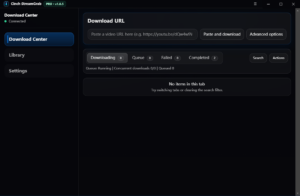
- Use a YouTube-to-MP3 workflow you trust.
- Save the MP3 and rename it properly.
Why this still works for many readers
- free in the common use case
- easy to understand
- does not require a subscription if the song exists on YouTube
Why it wastes time
- easy to grab the wrong version
- converter sites come and go
- audio quality can be uneven
- legal risk is still there
Use it when
- you want a free workaround
- you only need one or two songs
- you are okay double-checking the exact version
Skip it when
- you want the cleanest legal route
- you need the original studio version with certainty
- you plan to build a large local library this way
Method 5: Shortcuts, Power Automate, and Other Automation (Only for Tinkerers)
This is the advanced-user lane. It sounds smart because it promises automation, but it breaks more often than any other method here.
Community reports show iPhone shortcuts and Windows automation flows can sometimes pull a Shazam result into another service or workflow automatically. The problem is not the idea. The problem is how often it stops working when the underlying APIs or websites change.
Steps
- Find a current shortcut or automation flow from a source you trust.
- Import it and grant the permissions it asks for.
- Run it on one song first.
- If it succeeds, use it for a small batch before trusting it with your full Shazam history.
What it is good for
- bulk workflows
- people who enjoy tinkering
- users already comfortable with shortcuts or automation logic
What makes it fragile
- shortcuts break often
- third-party APIs disappear
- setup errors are common
- debugging eats time fast
Use it when
- you already know how to troubleshoot shortcuts or flows
- you want to experiment with automation
- you accept that it may fail next month
Skip it when
- you just want one song today
- you hate trial-and-error setup
- you need a reliable answer, not a hobby project
Method Comparison: What Should You Actually Choose?
| If your real goal is… | Best starting method | Why |
|---|---|---|
| Offline listening on your phone | Sync to Apple Music or Spotify | cleanest and most stable |
| A real MP3 file you can keep | Audio capture software | most direct file-ownership route |
| A free fallback | YouTube workaround | simplest no-subscription option |
| A phone-only Android path | ShazaMusic-style apps | only if you accept higher risk |
| Automation and bulk handling | Shortcuts or Power Automate | only if you enjoy fixing broken workflows |
Legal and Common-Sense Boundary
This is not the fun part, but it matters.
- Shazam itself is legal music recognition software.
- Downloading or recording copyrighted songs may be restricted depending on your country and the source service.
- Personal backup is one thing. Sharing, reselling, or distributing those files is the line readers should treat as off-limits.
If you want the safest path, stay inside Apple Music or Spotify offline downloads. If you want a movable MP3, understand that the convenience usually comes with more legal and technical gray area.
Common Problems and Fixes
Shazam synced, but the song never appeared in Spotify or Apple Music
- Reconnect the service inside Shazam settings.
- Check whether Auto-add Shazams is enabled.
- Wait a minute and refresh the playlist manually.
The converter grabbed the wrong song version
- Compare artist name, track length, and album art before downloading.
- Be extra careful with remixes, live versions, and lyric uploads.
The recorded MP3 sounds bad
- Check the source platform quality first.
- Turn off system notifications before recording.
- Test with one song before doing a batch.
The Android app looks shady
- That is already a warning sign.
- If the app asks for strange permissions or floods you with ads, stop using it.
The shortcut or automation keeps failing
- Try one fresh shortcut from a current source.
- If it still fails, stop wasting time and use another method.
Three blunt calls
- If you already pay for Apple Music or Spotify Premium, Method 1 is usually the smartest answer.
- If you need a true MP3, Method 2 is the most practical route.
- If you want a quick free option, Method 4 is the fallback most people end up using.
Quick Start
No time to read everything? Use this.
| Your situation | Start with |
|---|---|
| I already have Apple Music or Spotify Premium | Method 1: Sync Shazam and download there |
| I only have Spotify Free or no subscription | Method 4: Use the YouTube workaround |
| I want a real MP3 on my laptop or USB drive | Method 2: Use audio capture software |
| I am on Android and want a phone-only route | Method 3: Try ShazaMusic-style apps carefully |
| I like automation and do not mind breakage | Method 5: Try shortcuts or flows |
Pick one method based on your real goal, not the fantasy of a perfect all-in-one shortcut. Try it with a single song first. If it works, scale up. If it fails, check the Common Problems and Fixes section before switching approaches.
Sources & further reading
- Apple Support: Use your Apple device to identify what song is playing (Published: December 11, 2025)
- Shazam Help Center / official support materials (Accessed: March 2026)
- Google Play listing for Shazam (Accessed: March 2026)
- DRmare: How to Download Music from Shazam to MP3 (Updated: December 29, 2025)
- ViWizard: How to Download Free Music from Shazam (Updated: April 14, 2025)
- Chrunos: Shazam to MP3 Shortcut/Flow for iPhone, Mac, and Windows (Updated: January 18, 2026)
- Community posts and tutorial threads discussing shortcut failures and app sync issues (Accessed: March 2026)